Showing posts with label assistive technology. Show all posts

Thursday, April 4, 2013

Top 25 Favorite AT Tools, Part Two: Text and Writing Tools, Apps and Supports


PART TWO...


In Part One, I shared a list of most used items for Cause and Effect, Switches, Mounts and AAC.  I want to continue Part Two with tools that have been found most valuable and most-used for accessing text and writing support out in our schools. I also have a couple of organizational tools and honorable mentions.
There are many high-priced software packages that do incredible things but I find that many of our small rural schools don't have the budget to buy/ implement them. We have tried through our instructional technology department and our assistive technology department to find study tools, apps and software that will give the most bang for the buck. we have found some great free open source software and apps that do a great job.
Some of the apps/software below are similar and costs vary. For example, DSpeech is a text reader for the computer as is Snap & Read, but while D Speech is free, Snap & Read is much easier to use and costs $129. For the iPad, Subtext and Voice Dream both read text but Voice Dream interfaces with Bookshare accounts where Subtext accesses text and pdf's you sync with it and/or books you buy linked within the app and then access text to speech. Read2Go, the app from Bookshare costs $19.99 but Voice Dream is half the cost.The difference in all of these is in ease of use for the price you pay, but I like and recommend multiple options depending on the budget one has and the intended end-user.


Text and Reading Tools/Supports:

12. Snap & Read $129 REALLY easy to use. Drag the frames and click to hear selected text on anything on your computer. I won a free copy at a conference sitting in on a Don Johnston presentation (Thanks Don Johnston!)

13. Voice Dream App $9.99 Integrates with Bookshare files for iPad users at half the price of Read2Go and can read other text files off your cloud files you input.

14. Subtext App FREE Great app to access the web,your cloud stored texts and books you can buy online. Has classroom integration features as well. Great literacy support tool.

15, Bookshare service  FREE Federally-funded book access for individuals with print disabilities. Members can download free text reader software for their computer. No iPad apps for free yet though! Someday?

16. Read2Go $19.99 The companion text reader app for the iPad that members can use to download books and read. Includes reading settings for text to speech voices, speed, font size, color, background, etc.


Writing Apps, Tools and Supports:

17. Dragon Naturally Speaking $99 and/or Dragon Dictation for iPad and iPhone, FREE

18. Plaintext App FREE Great app to copy and paste text and save to the cloud on a service like Dropbox or Evernote.

19. DSpeech FREE Open-source free download talking word processor. text reader. Converts text to Mp3 files I use this a lot and give it out all the time.

20. Zentap App FREE  word processor with word prediction - can copy text to Plaintext and store in cloud space.

21. Cosmonaut Stylus $25 Great stylus that feels like a bif fat crayon or marker. Great for students with orthopedic/grip issues.

22. Accessibility Features on iPad OS - the guided acces to lock off parts of the screen alone makes this awesome. add to that the speak text, gesture, font size, pionch and stretch, touch access and screen reader functions and the iPad is a ready-made accommodation tool for learners. My blog post on Accessibility features overview

23. 123 Tracer and ABC Tracer Apps FREE Great for working on letter and number recognition and writing practice - use with the Cosmonaut stylus.

24. Dropbox File sharing, storage and App FREE (2Gb)  I use to access many documents on multiple devices. I have Evernote and Google too - they are all great. Some apps only work with certain file sharing platforms so you will either have to expand your file share/storage accounts or limit the apps you use. One app I use on the iPad only downloads to itself from Dropbox and only uploads to Evernote..go figure!??

and finally... 25. My Study Bar FREE  From Eduapps in the UK/Scotland, this can either be downloaded on a jump drive to be mobile on multiple devices or dedicated download to a computer. It has a suite of accommodation tools for reading, writing, vision, etc., my favorite being Sonar Cursor Ring which is a cursor that students can set the size and color to use to help with tracking the screen. I have used it with students to set a large red square frame tool to move/track as they read on the screen. Definitely check this out...


Honorable Mentions:
There are always some items that you don't know what to do with they deserve to be on the list but you ran out of space.

HM 1: Baiboard App FREE Basically a collaborative whiteboard, but I use it to add scanned worksheets in a pdf format and then students can open them on the iPad and write with their finger or a stylus to do the worksheet, then save for the teacher to grade and print later.

HM 2: Flipboard App FREE  I use this to set up all my favorite topics I track. Each topic is presented in a magazine format and aggregates the top tweets, posts and articles off the Internet in one simple spot...Love it!

HM 3: Touchfire keyboard for iPad $49.95 Add this rubbery see-through overlay to your iPad on-screen keyboard to add more tactile interaction. Pogue's Review

Hope you enjoy exploring these tools!

All the best,
Lon


Bookmark this on Delicious

Top 25 Favorite AT Tools, Part One: Switches and AAC


There are things I love to use and have found to be the bread and butter items I go back to over and over professionally as an AT Specialist. With budgets tight, folks are always wondering what they can get that will get used and not sit on a shelf. I decided to share with you the ones that seem to always be in demand and NEVER sitting on the shelf. I have included their cost, a link and notes how I use it where appropriate.


Cause and Effect, Switches and Mounts: 
I am always putting together an adapted toy with a switch and a latch timer or plugging in a radio and twinkle lights or fan to use with a latch timer. Often the switch has to be mounted too. The 4 items below are what I use the most. I have an array of fans, light balls/sets I have made, radios, tape players and switch adapted toys to mix and match out in schools for variety (That could be another post in itself).

1. Ablenet Universal Mount with friction knob $235 Get access to a switch by mounting on a wheelchair, standard or desk/table.

2. Ablenet Powerlink 4 $329 Can use with radios, tape players, light sets, juicer/blender, etc.

3. Jelly Bean Switch with Latch Timer $109 Use with battery operated switch-adapted devices/toys.

4. Switch Adapted Toy ($40-50 Range) Check out Enabling Devices Therapeutic Learning for many plush toys, action toys, light and motion toys, fans and musical instrument toys.

Note: You can learn to adapt your own toys too! Battery Interuptor method  Multiple Action Toys with soldering/rewiring   You tube has videos on this as well. Link to buy battery Interuptor and videos from Enabling Devices


Augmentative Communication:
I have an arsenal of most used and most checked out items listed below. There are many more that are great and get used but these just keep coming up as the most utilized items.

5. Big Mack $119 Use to record single messages. Can mount on the Universal Mount. It has ports to plug in toys and devices to activate while saying the message.
(I use it to read books with kids. I record the page and have them press to read on the fly. We record and read the whole book page by page and have a great time. They get to "read" by pressing and get initial literacy and sequencing support/training.)

6. Cheap Talk 8 with levels $309 I use overlays created with Boardmaker to create board sets that support an activity, a concept or steps in a routine. Can use it for more than "I need to go potty" or "drink please" !

7. Boardmaker Software $399 Use to create Schedules, Routines, Choice boards, Sentence strips, overlays for devices and more...

8. Go Talk One (set of 4) $12 each Use to create mix and match phrases, sequencing activities, etc. Not just a speech output single message tool but a way to structure language and build phrases, identify colors, things, etc.

9. Sonoflex Lite App FREE  We use this on iPads as a way to build sentences, learn language, categories, etc. for early learners as well as a speech output trial board. The full version is $99.

10. Proloquo2Go App $190  We use this on the iPad and iTouch for trials. With the new version's core vocabulary option it has streamlined the access for users.

11. Sounding Board App FREE  This free app has a great board template to design and customize 1 to 9 buttons. Boards can be linked too. It scans and also works with the Blue 2 bluetooth switch from Ablenet. There are pre-made boards that can be bought at the online store.

Hope this gives you some resources to build your own equipment collection.

NEXT TIME: Part Two will be on Text and Writing Tools. Apps and Supports so check back!

All the best,

Lon


 Bookmark this on Delicious

Thursday, March 21, 2013

Hands on Science with Exploriments App Series


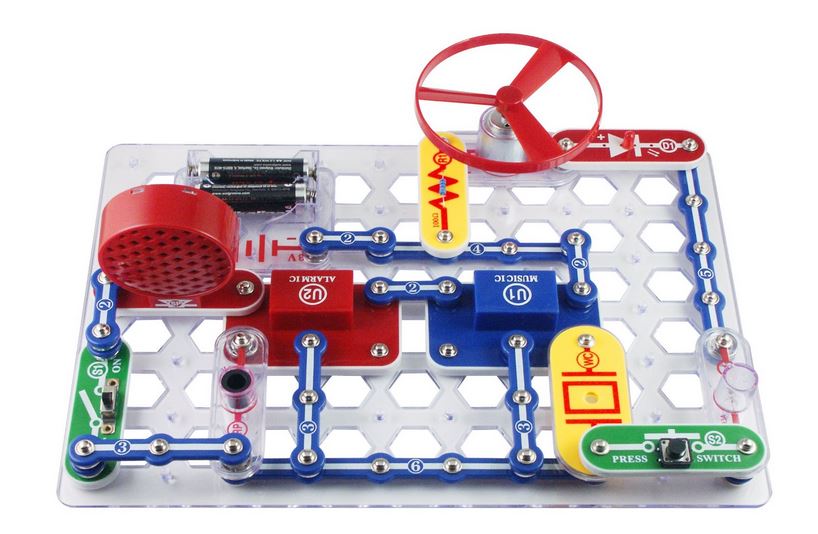
My son is getting very interested in doing science experiments with batteries, wiring and making simple circuits. He has grown up with one of those construction sets, (Snap Circuits Amazon $21.90) where you snap the colored plastic bars into the series and add a battery and light bulb, sound generator or fan and make it all run. He is now wanting to explore more on his own.


I decided to look for apps for the iPad that let you drag and build circuits - I came across "Exploriments" which is a set of app science experiments on different topics, all very hands-on. The first one is free and explores weight and mass letting you try playing with weight differences on different planets,
Check out their Blog HERE

Here is a demo video on their unit on electrical circuits:


Here is a link to their app page that explains insights in the different units and shows demo videos for some of them.
The Unit I downloaded had an overall actions button that showed what the activity chosen can do and how to manipulate it. It was very easy to use. The insight button gave you a set of scrolling index card style insights 1-10 of things learned in each activity. The free mass/weight app had 3 built-in activities each on a concept.
For students that need hands-on ways to learn material, I would highly recommend checking these out. They range from free to 3.99 for individual app topics such as units on motion, weight and mass, electricity, optics, Newton's Law, compunds, Pendulums, Vectors, etc.
Teachers may be interested to know they have these available for use on a computer for the Promethean and SMART board.
Have fun Exploring!
Lon


Bookmark this on Delicious

Tuesday, February 19, 2013

AT Tools for Everyone's Toolbox, Part One:


In December I wrote a post, "Self -Accomodation Should be a Standard of Daily Life". In it we looked at the ways we accommodate the tasks we do day to day. We looked at how students need to have tools that are accessible to them and help them accommodate their learning. It is also important that all the tools be available to all learners with equal access.

Assistive Technology
The definition of Assistive Technology according to IDEA is:

“Any item, piece of equipment or product system, whether acquired commercially off the shelf, modified, or customized, that is used to increase, maintain, or improve the functional capabilities of children with disabilities.”

Assistive Technology has lived behind the special education boundary lines for a long time, but trends are pushing us forward and prodding us with the idea that assistive technology and universal design principles aren’t just for our special needs population, but should be integrated into learning for everyone. Students spend 7 -8 hours a day in the process of learning new things and experiencing challenges to succeed. They certainly deserve as much of a level-playing field as we can give them.Think about the words “increase, maintain or improve”. There are greater demands on educators for accountability to demonstrate that all our students are increasing and improving test scores and mastery of common core goals. We want to see our student’s knowledge and abilities increase and improve, but students with degenerative disabilities may struggle just to maintain, so we need to make sure we include them in this too. If I feel that I have to work harder sometimes to maintain, just think about how our students feel! Put yourself in your student’s shoes and you will realize accommodations need to be there for everyone.
What are the tools to help them on this “Road to Success”?
There are low-tech, mid-tech and high-tech tools for student accommodation. Below is an overview of the low tech tools that should be available. In future posts we will cover mid and high tech tools as well as links to specific free software and video tutorials.

Low Tech Tools:
Low-tech tools are things like special pens and pencils, highlighters, scissors with special grips, pencil grips, embossed line paper, slant boards, transparent color overlays to lay over text for reading, text-framing strips, highlighter tape, colored keyboard labels, number lines and counting boards, enlarged worksheets, page magnifiers, fidget toys to help with concentration and sensory issues, highlighters, tabs, color-coded folders and visual schedules for organization. Having these things available in an organizer for class access would be one low-cost way to expand tools for accommodations.
Guide your students in understanding how they learn and show them how and when to use tools that make it easier for them. You might sit down with your students in a conference format and work with them to fill out a “Personal Learning Styles and Tools Profile” that helps them think through and check the things they know would help them succeed. Adjust and adapt it throughout the term or school year and help them define and focus-in on the tools that work the best for them in different situations.
Taking the time to set up the foundations for accommodation can reap huge benefits for all your students and establish life-long patterns for success.

Resources:
To check out an online comprehensive toolbox go to: http://udltechtoolkit.wikispaces.com/
A great place to see many low tech tools in one spot is http://www.onionmountaintech.com View their LoTTIE (Low Tech Tools for Inclusive Education) kits.

All the best to you!
Lon

Bookmark this on Delicious

Thursday, January 31, 2013

Aurasma App: Augment Reality With a "Virtual" Routine Schedule


Wouldn't it be great if you could aim an iPad or iTouch camera at a symbol or picture on a daily visual schedule and get an instant video of what the steps are for that routine? Well you can for free with the Aurasma App.
In 4 simple steps you can link a video in your camera roll or photo album as an overlay and sync it to an item or a picture symbol in the classroom. Once that is done, a student can hold the iPad or iTouch with the Aurasma App on, and the camera automatically sees the image and starts the video.

Easy Steps:
Get the Symbol
I went to Google images and picked a picture of a fiddler for music and copied and pasted it into a Word document, enlarged and printed it off for my wall "symbol". (You could use your Visual schedule images, etc.)

Choose the video
I looked on my camera roll and found the video clip I wanted to use of the teacher in music, then opened the Aurasma app and pressed the plus sign to add a new aura/overlay. It asked what overlay I wanted and I selected the "Device" option, then pressed a plus sign and browsed/to  my video to attach it.

Add an "Aura"
The app asked if I wanted to add an Aura. I laid the picture of the fiddler down on the table and held the iPad over the picture and looked to see that the red/yellow/green slider went to green, then clicked on the camera icon and took the picture.

Name your new Aura
I named it the title I wanted for my class activity/routine and it saved and linked the two together.
Done!

Use Your New symbol linked video with your schedule
Now when I hover over the image with the app on it gives me purple swirls and starts the video hovering over the symbol in real time.

Here is a video of  Aurasma being used in education:


Applications:
I am going to work with an intensive learning center I consult with to take some short videos of important routines and link them to some schedule symbols and see if we can't make this a fun and motivating way to learn how to come in quietly, sit at circle, listen to a book, have music time, wash hands for snack, etc. How about a video of a storybook that when the cover is scanned it reads and asks questions? How about a flash card or manipulative activity with a short clip on how to sort or play? I would love to use videos with card symbols that model cooperative play, sharing, taking turns and more.
The idea are endless.

Go have some fun!
All the best,
Lon

Bookmark this on Delicious

Monday, January 28, 2013

Wednesday, January 9, 2013

Build Your Own Virtual Driving Course for Training Joystick Driving Skills


I couldn't find a free online driving game that would allow us to use a mouse or joystick mouse emulator to steer a car around streets and help a student train to drive a power chair. We wanted him to be able to practice on a computer before the real joystick was attached to his chair.
I finally decided to make my own driving course and I used Power Point to create different virtual mazes/courses that he can maneuver through. I found mounds of dirt, motocross tracks, barns, grocery stores, post offices, gas stations, student desks, start and finish signs, etc. on Google images and then created my slides of a dirt track, 4 city blocks and an intersection, a classroom with rows of desks, and more.
The key to this was using the Sonar Cursor Ring Program so we could set the cursor to be a big red ring to use to "trace" the track with the joystick around the course. You can use larger and colored cursor settings on your computer to facilitate this as well as downloading and importing cursors. I think it would be fun to add my own custom cursor, an image of a wheelchair with the head of the student photo-shopped on to make it more fun. Be creative!
Unfortunately the organization that supported and offered the Sonar Cursor Ring has closed their website but you can still get the free program as a part of Access Apps/EduApps and My Study Bar Downloads.
If you want to design your own custom cursor, making it be a wheelchair, dune buggy, etc. you can copy an image and edit it and add it to your mouse setting pointers/cursors list to choose. Here is a Youtube video for you to "geek out" on how to create a custom cursor for your computer:


We used the Penny Giles Roller II Joystick USB Mouse Emulator for the computer with interchangeable handle and soft ball tops. You can get it for $345 from Boundless Assistive Technology online.


We don't have one of these in our equipment center but fortunately we were able to use the Oregon Technology Access Program (OTAP) out of Roseburg, Oregon to borrow one to trial. This is a free service to Oregonians and you pay return shipping. Whether you are an Oregon school district or a family/home you should check them out.

Here are some screen shots to give you and idea what you can create.

Basic Simple Cross Hair Practice Course (Tracing up/down, left/right):

Object to Object Navigation Course:
Classroom Desk Obstacle Course:
Dirt Track Course:

Dirt Track 2 (Made with Paint Program)

City Intersection Course:


Have fun and safe driving!
All the best to you...
Lon

 Bookmark this on Delicious

Tuesday, November 20, 2012

Free Goodies Available at Learning Magic: Closing Doors end of 2012

Learning Magic, a pioneer in interactive learning on the computer will be closing its doors the end of December 2012. The company, founded by Byron Wilkes, has been dedicated to developing materials and templates for students with special needs to access the fun of learning through motivating topics such as wildlife, nature and ecosystems around the world. Byron teamed up with experts in the SPED Learning and Speech Language Pathology field to develop materials that addressed key learning concepts in fun and motivating software.  Many of these activities featured hundreds of photographic images Byron took of fish in coral reefs, roaming under a rain forest canopy or trekking across Kenya with camera in-hand to capture the "magic" that led to learning in a special way. I thought of him as a Marty Stouffer, Marlin Perkins, Jacques Cousteau and Crocodile Hunter rolled into one for special needs kids. His packaged units, complete with vocabulary, writing starters and lesson plans were designed to play in software such as Intellitools Classroom Suite, Crick Clicker 5 and SoftTouch My Own Bookshelf.

A set of his photography available to use in your own lessons, PCS and Topic/Communication Boards:


I first met Byron when he came down and participated in an Eastern Oregon Summer Institute for teachers. He spent a couple of days with me helping in my classes and sharing his software and concepts for interactive and adapted learning that fostered writing and reading in high interest titles for students with learning or physical impairments. Byron donated his product library to our Assistive Technology Center for our teachers to trial for purchase. Through the years I have run into him at many national conferences and sessions and he has had a great impact on me.

Byron sent out an email sharing:

"We want to first thank the thousands of teachers/therapists/parents and others who have worked with us in the creation/testing and use of our proven products.  Our website (www.learningmagicinc.com) will go off line at the end of December, so we encourage you to go to our "Goodies" section and download as many of the free IntelliTools Classroom Suite, Clicker 5 and My Own Bookshelf activities as you would like.

Our commercial products will remain available throughout the end of the calendar year or until inventories run out.  If you would like product or pricing information please feel free to email us at info@learningmagicinc.com.

Thank you again for your support and encouragement throughout the years"

Thank you Byron for your investment in children and the thousands of students who have had more fun learning because of you and your efforts! I am looking forward to hearing about your next great adventure!

You can listen to Byron share about his life's work and his thoughts on the future of technology and special needs on Blog Talk Radio, Wednesday November 28th at 10 a.m. The archive will be available on the side-bar player afterwards as well.

All the best...
Lon


Bookmark this on Delicious

Tuesday, February 7, 2012

Use AudioNote for Synchronized Recording and Note Taking on iPad


When students need support for lectures and notes, take a look at AudioNote ($4.99) and AudioNote Lite (free) for the iPad.
AudioNote allows notes to be handwritten in pen mode for drawings and notes, or typed with the keyboard.The lite version can record a lecture and track notes written during the session and sync them to the recording. Tap anywhere on your notes and go to playback and it will replay the lecture recording where you tapped.
The highlight feature re-traces letters in blue as the recording plays so you are reviewing and tracking at the same time. You can email your notes and wi-fi share with the upgraded pay version.
You can buy a Livescribe pen for as low as $99.99 to use with real paper, but you can use this lite app for free with your iPad and get many of the same options open to you - for free. Real pens and real paper are great to have for certain settings, but the tools are there for you with synchronized notes and playback on an iPad.
This tool can be a real support for students with traumatic brain injuries and students that need help with organizing and memory. Check it out.

Here is a video review of Audio Note:


All the best!
Lon

Thursday, January 5, 2012

Ed Tech Trends to Look for in 2012: AT Connections and Accommodations


I read this article "12 Education Tech Tends to Watch in 2012" today and thought it was an important list of trends to consider in the assistive technology field. One trend in particular caught my attention, the BYOD trend (Bring Your Own Device). More and more, students have iTouches and iPads, Smart phones, laptops and tablets. If we want them to accommodate their learning with tools, text to speech, online dictionaries, research sites, etc. the issue of schools allowing the students to bring these devices to learn is going to have to be addressed.
Fortunately in my region and districts, the students who have laptops or iPads and need them at school are allowed to bring them. They are on IEP's and have the need for support with this tools for accommodating learning. I want to know what will happen when regular student populations want to bring them as well and they are declined the opportunity to use them because of mis-use fears by school administrators and school boards. It will be a growing issue and full of heated debate!
This article from 2010 in Toronto Life: "Why Smart phones in the Classroom Equals Smarter Kids" addresses some of these fears. http://www.torontolife.com/daily/informer/from-print-edition-informer/2011/12/20/jesse-brown-gadget-goes-to-school/
There are some interesting trends to think about and I hope you read and enjoy. I would like to explore some of these trends and share thoughts over how they might impact AT. I welcome your thoughts and comments as well.
All the best in 2012!

Wednesday, December 21, 2011

Get to Know Nook Study for PC and Mac

On the journey of researching e book readers and tools for print disabilities, I stumbled across Nook Study, a free download from Barnes and Noble for PC and Mac only - it is not in an app version (yet) for tablets and the iTouch, iPhone and iPad. I downloaded it and put it through the paces this past week. Here is what I came up with:

Pros:
It is free.
It has a key-stroke shortcut, Ctrl -Alt-S, to activate text to speech. Using the space bar starts and stops the reading of any text you highlight and starts and stops continuous reading.
The voice it used seemed pretty natural and you can speed it up or slow it down by accessing the settings in the Library home page under settings and the accessibility tab.
You can highlight text in various colors and add sticky notes.
Highlight a word and add a tag, note or website link.
Books you purchase can be set up into folder categories, i.e. history, literature, science, etc.
You can set up media stacks for newstand purchases in chronological order.
There are many college and professional trade textbooks in e format.
The Nook Study syncs with other Nook apps; i.e. books I purchased on a Nook App on an iPad show up on the computer on Nook Study.
There are many free classics and public domain books available. (Check out Calibre for formatting pdf's and other documents and managing/adding to your e reader libraries)

Cons:
Textbooks available in a Nook format are limited. You are not going to find a fourth grade social studies textbook.
Not yet available for portable devices.

I would check out this free download if you are looking for a text to speech accommodation and want some study helps. I am loving it.

Lon

Sunday, December 4, 2011

14 Apps for AAC, Part Two

Here is Part 2 on the AC Apps for the iPad. I am going to be getting my hands on all of them and writing reviews of each to kick off 2012 in January/February so check back as those are posted!

8. ICommunicate: $49.99. Low to mid user, single hit communication maximum board is 4 X 10 cells. Board view and schedule view. Can email boards to print them off. Has recordable voice, text to speech and has 10,000 image library included. http://itunes.apple.com/us/app/icommunicate-for-ipad/id364186415?mt=8

9. AutoVerbal Pro: $9.99. Utilizes multiple sliding ribbon/bars to choose and build phrases. More advanced versions available. http://itunes.apple.com/us/app/autoverbal-talking-soundboard/id368727888?mt=8

10. Tap to Talk: Lite, Free; Full version with access to online library, $99.95 1 year, $179.99 “forever”. http://itunes.apple.com/us/app/taptotalk/id367083194?mt=8 Tap to Talk home page: http://www.taptotalk.com/product.aspx

11. Grace: $37.99. Users can navigate through the categories and click on images they want to use. Users can use each picture isolated or combine a set of pictures to make phrases. http://itunes.apple.com/us/app/grace-picture-exchange-for/id360574688?mt=8

12. Look to Learn: $14.99. “I want” paired with a photo and higher quality voices allow needs and choices to be communicated. For early to mid communicators. Free assessment can be downloaded at www.look2learn.com. App store description: http://itunes.apple.com/us/app/look2learn-aac/id319600029?mt=8

13. Proloquo2go: $189.99. contains text-to-speech voices, up-to-date symbols, powerful automatic conjugations, a default vocabulary and much more. Builds phrases to speak by selecting folders with categories. App store description: http://itunes.apple.com/us/app/proloquo2go/id308368164?mt=8

14. Ablenet Sounding Board: $49.99. Design 1 to 9 button boards. Record your message, use built in library or use pictures off camera. Has ablility to collect data on user as well. Ablenet is developing pre-made boards to purchase and download for this app. Website: http://www.ablenetinc.com/Assistive-Technology/Communication/SoundingBoard

Accessories:

Cases: AMDI makes a durable case with a handle designed for AAC with an iPad. Here is a link to a blogpost on it: http://www.laseredpics.biz/servlet/the-Adaptive-Technologies-Supplies/Categories
The AMDI website and iAdapter 1 and 2: $198, http://amdi.net/index.php?route=product/category&path=141_106

Keyguards: Lasered Pics makes iPad Keyguards and can make customized ones for the apps they don’t carry as well. They are currently made for the apps Grace, iClick iTalk, Proloquo2go, Speak it, and TapSpeak Choice. They also make one to fit over the iPad for the iPad keyboard. $19.95

I will be presenting a 3 hour break out session on these apps in Portland, Oregon at the AT Now! Conference March 1 and 2. (The breakout session day is March 2). If you are in the area and might be interested in attending, I know there are 2 other presenters doing sessions on iPads that day so there will be a lot covered. For more information go to the Oregon Technology Access Program website and check the conference page. They don't have the actual conference info up yet, but it should be up in January sometime to register.

All the best!
Lon

Monday, November 28, 2011

14 Apps for AAC, Part One


I have been getting requests for information on apps that use the iPad as a speech device. There are so many out there and I have compiled a list of 14 apps from free up to $190 that can be used as AAC. Some produce single hit messages, some are able to be customized boards and some are full-blown choice and phrase, sequenced talkers. The TapSpeak line now includes 4500 basic Boardmaker symbols. Some cost a one-time fee and some have annual subscriptions. I am splitting these up into 7 each post so you aren't blasted with too many at one time. I will also included links and costs to cases and key guard overlays. at the end.

Your suggestions and additions are welcome!

The following list of Apps converts the iTouch/Phone or iPad into an Augmentative device:

1. My Talk Mobile and Workspace. $39.95 with one year upgrade. Works with My Workspace to design and sync boards. $9 a month, $75 a year or $175 3-year. (My Workspace free to SLP’s with ASHA number) Has Lite version free.

My Talk: http://www.mytalktools.com/dnn/Home.aspx

You Tube: http://www.youtube.com/watch?v=eMLNWlBycgg&feature=player_embedded%27

2. First Then Visual Schedule, $9.99 from iTunes App Store. Has 1, 2 and 4 image screen modes and record your own sound and choose your own picture/symbol. http://itunes.apple.com/us/app/first-then-visual-schedule/id355527801?mt=8#

3. My Choice Board, $9.99 iTunes App Store. Prepare and save boards with up to 6 choices and ability to expand if needed. Board has a phrase “I want” and then images as choices with optional checklist. Images available from camera, Internet search or photo albums. http://itunes.apple.com/us/app/my-choice-board/id384435705?mt=8

4. TapSpeak Sequence Standard, $29.99, iTunes App Store. Has re-sizeable and moveable visual targets, unlimited number of sequences, use your own images and drawings, un.imited phrase recording length and sequence length. http://itunes.apple.com/us/app/tapspeak-sequence-for-ipad/id379541810?mt=8

5. TapSpeak Sequence Plus, $49.99. Plus version includes 4500 image Mayer Johnson Boardmaker library for building sequences.

6. TapSpeak Button Standard or Plus, $14.99 or $49.99. Uses image of Big Mack or Big red button/jelly bean button on screen and overlays an image on it and recordable message activates when tapped. Standard uses your images, Plus uses Boardmaker library. http://itunes.apple.com/us/app/tapspeak-button/id359998293?mt=8

YouTube: http://www.youtube.com/watch?v=zbmNtgfQXCs

7. TapSpeak Choice, $149.99. Builds boards using Boardmaker symbols with speech window at the top to build phrases. Low to mid users.

http://itunes.apple.com/us/app/tapspeak-choice-for-ipad/id408507581?mt=8

YouTube: http://www.youtube.com/watch?v=WI9LKZWIpuA

Note: The TapSpeak apps can use the RJ Cooper/Ablenet Blue tooth wireless switches.

All the best!

Lon


Digg! Bookmark this on Delicious

Wednesday, September 7, 2011

Free Online Typing Resources

I have been asked about keyboarding and typing programs and our schools always are looking for free resources. I have used tuxtyping for kids for a long time. I thought I would add a few others below. If you have some resources that you like please comment and add your ideas and links!

http://www.typingweb.com/typingtutor/ - this one is free but you have to register to keep scores and track progress.

http://www.nimblefingers.com/

http://typingsoft.com/all_typing_tutors.htm a directory list of free and pay typing programs online

Lon

Digg! Bookmark this on Delicious

Wednesday, August 24, 2011

iPad USB Camera Adaptor Works for other Accessories

We bought a mini EZ See Keyboard for an ipad through RJ Cooper this summer for a student and found that we needed an adaptor. The Apple camera adaptor (USB) will support headsets and keyboards, so if you are looking for a way to get a particular keyboard, a headset/mic, etc this should do it.
Read the full article for details from zdnet.
All the best!

Friday, August 12, 2011

Back to School: AT Integration Projects using Wii, Language Arts, Open Source Tools and AAC Curricular Designs

Summer is drawing to a close. Classrooms are being set up for students to return and so it is time for me to return as well. I have purposely turned my attention to family and summer chores on our mountain in Oregon over the past 2 months. Although AT is a passion and something I live, eat, breathe and sleep during the school year, I have let it sit on the back burner over the summer. I don't know about you, but I have needed the break to let my batteries restore and recharge for new inspiration and a new year.
This week I have started getting calls and emails, "We need a training before teachers return. Contact me." So I guess the time is approaching to kick into gear and drive off the mountain and get working on new projects, pick up old ones and get back to the students who have been home doing things with family over the summer like showing bunnies at the fair, swimming, speech camp, etc, I guess it will be a transition for them too!

My Back to School Integration List for Assistive Technology and Learning:

Wii therapy/XBox Kinect - continuing our pilot and working with some new schools to trial as well support schools that purchased systems for start up this year. We use these to enhance OT goals and also to enhance peer play and social/communication goals. We have an autism specialist that we turned loose with a Kinect and XBox this summer to develop some strategies for autism social and communication goals - can't wait to see what she has come up with.

Common Core Language Arts Standards alignment with strategies using AT, E-Readers and iPad apps, etc. I taught a summer class (OK I wasn't off all summer) on cross-referencing Core Standards in ELA with open source computer apps that will assist in student succcess for that standard. I want to develop it more this year.

TBI and AT: Technology that supports learning for students after Traumatic Brain Injury.

Free Open Source Tools on all our school computers for student accommodation - now a reality but in need of a lot of training and reinforcement. Tools include DSpeech, XMind, Hott Notes, and tools like Vubar, Sonar Cursor Ring and Orato. You can see a list of links and descriptions at the Access Apps Site.

AAC devices with boards/pages designed for curriculum and in-class learning not just communication. I have helped our SLP's develop some exciting boards for science as well as life skills and community topics. These have been on Dynavox and PRC devices.

iPad/iPod Touch apps searches for AAC, AT and student accommodation and learning - there is always something new.

I am excited to see what we come up with this year. I am always striving to learn new things and develop cutting edge strategies in my service to students and staff . If you are returning to a school district or regional service organization after a summer break, I wish you a great fall full of great opportunities to make a difference in a child's life.

All the best!
Lon


Digg! Bookmark this on Delicious
Friday, May 20, 2011

Exoskeleton Assists Graduation Walk

The exoskeleton is begninning to find its way into the mainstream media. I found this video clip and news item on a college senior who was able to walk through to get his diploma using the help of an exoskeleton in Berkley, CA.


Although still under development, the cost was said to be around $20k once it is ready to market.


If you want to find out more about the exoskeleton, check out my recent interview with Dr. Gene Emmer on the development of the exoskeleton and links to his information.


All the best to you!


Monday, May 16, 2011

iPad Growth Continues in Support of Special Education


The iPad continues to become more and more popular for supporting students with special needs. I have shared my favorite apps in the past and came across the video clip and article below on how the iPad is being used at a technology resource center in Marin County, California. Thousands of iPads are now beginning to be purchased for special education students. I am thankful for the support we have in Oregon from United Cerebral Palsy in helping fund iPads with Proloquo2go and other apps they might need. We have been able to provide them to several students.


ABC Local Affiliate iPads for Special Education

This is well worth watching. I especially enjoyed seeing two students hold a conversation between them, one with a Dynavox VMax and the other with an iPad with Proloquo2go.

All the best!

Monday, April 4, 2011

Exoskeleton Interview with Dr. Gene Emmer on No Limits to Learning Live

Blog Talk Radio Show "No Limits to Learning Live" interview with Dr. Gene Emmer is now on archive.

Exoskeleton: Can "Ironman" Help with Physical Disabilities?
Archive
You can also listen on the right sidebar Blog Talk Radio player.

We had a fascinating interview on the exoskeleton and where it is headed. Did you know there are 3 types being released to limited regions for institutional use now? Find out about the 4 main exoskeletons that can replace wheelchairs, specific target areas for upper and lower body strength, varieties of motion sensing vs. driving and gait issues.
Dr. Emmer shared his concerns about the future of the exoskeleton. He believes a lot of the availability, affordability and marketing while moving from institutions to the home market will be determined by the public demand through awareness, requesting through hospitals, doctors, therapists and generally putting out the call for need.
You can access his website: exoskeleton-suit and news blog: wheelchairpride.

Lon


Digg! Bookmark this on Delicious

Thursday, March 31, 2011

Blog Talk Radio - Exoskeletons: Can Iron Man Support Physical Disabilities?

Blog Talk Radio Interview with Dr. Gene Emmer on the Exoskeleton Monday April 4 at 8:30 am Pacific. The exoskeleton is an outer suit that could take the place of a wheelchair. There are many models, prototypes and neurological extensions being developed. Dr. Gene Emmer has been investigating the research and development of the exoskeleton and has conducted interviews with some leaders in the field. His website is: Exoskeleton-suit.com Reading his research, I have discovered that there are external suits and also "bionic" prosthetics that connect to a brain implant that controls by actual neuropathway synapses. Folks with issues between the brain and body/arms and legs have special challenges in getting neuropathways connected to allow triggers to move prosthetics. There have been great discussions on therapy and use of the exoskeleton for people with disabilities. Below is "Rex", an example of an exterior system that supports the legs. Check out an example with "Rex" shown below and YouTube video: Dr. Emmer and I began to email several years ago when he shared a wheelchair under-carriage LED light system. I posted that on my blog and since then we have kept in contact. Dr. Emmer and I have been working on a Blog Talk Radio interview for some time now and I am excited to share that we will be on for you to listen or call in and chat on Monday, April 4th at 8:30 a.m. Pacific Time. The archive will be available on my sidebar to listen and download as well after the show. The call in number is: 310 982-4116 if you want to ask a question or contribute to the discussion. Hope to see you there! Here is the link to the show: No Limits 2 Learning Live- Blog Talk Radio All the best! Lon Digg! Bookmark this on Delicious