Friday, November 18, 2016

Assistive Technology Tools for Transition to Work Posts Coming


Hello Everyone,
It has been a while since I have written on this blog. My work has moved into the realm of high school transition services as we work to develop a more seamless transition for students from the classroom to a world of competitive intergrated employment here in Oregon.
What is interesting to me is that way back when I first started this blog, No Limits to Learning,  I actually had 2 blogs. One was this one, No Limits to Learning, for education, and the other one was No Limits to Life - a blog dedicated to vocational and life accommodations with AT. It just got to be too much to monitor and write both blogs so I closed down the life blog and focused on learning. Now many years later, I have found it starting to come full circle as I am focusing on the transition from Learning to Life for our students 18 - 21.

I am going to "re-awaken" this blog somewhat and start to share on the vocational/transitional topic more in the weeks/months ahead. I also want to share with you my more current blog, A Techie Toolbox, which has been a platform for my ongoing conference presentations and trainings over the past few years and has been a more narrow focus for teachers and professionals.
Also, I have a blog for my transition services in Eastern Oregon at TNF8 (Transition Network Facilitator for Region 8 in Eastern Oregon)
So, as you can see, I have still been blogging, it has just changed adresses and topics.
Hope to see some old visitors return and share comments as well.
Thanks to all of you that use this as a reference and resaource.
Lots of gratitude goes your way!
Lon


Digg! Bookmark this on Delicious

Tuesday, March 31, 2015

Apps for Sensory Processing Disorder, Autism and Video Task Cueing, QR Codes and iBeacons


I have been sharing some AT apps and ideas I picked up lately and have had some DD and VR folks with DHS contact me in our region about these tools and there is quite the interest. I thought it might be good to go ahead and share them with everyone.

Sensory Processing and Regulation
I attended a workshop at Multnomah ESD on AT and Behavior Supports earlier this month. The speakers were from Seattle area and are using AT in transition plans for work with individuals that have severe behavior issues. I was introduced to a set of apps by Brian Eno a musician who has merged art and music together in an interactive ambient setting. The apps Bloom $3.99, Air $1.99 and Trope $3.99 work for iPhone and iPad and the Scapes app $11.99 is for iPad only. Scapes looks more like a construction and creative workstation with more working parts. They are being used for self-regulation and calming. Here is the link to the site, Generative Music, that explains the apps:


Video Task Cueing and QR code readers:
The workshop I attended also described the use of Task Cueing using handheld devices. Marsha Threlkeld was one of the presenters and is working with our Oregon Seamless Transition Teams as a subject expert from Washington State. She has expressed interest in coming down to Pendleton area (she has a home in Yakima) and doing some transition/AT related support if we are interested. Here is a link to one of her Power Points on implementing handheld devices and list of recommended apps.

Some task cueing for individuals that cannot initiate the scanning of QR codes or engaging a device were using Showme QR and the use of iBeacons. If anyone is more interested in learning about these tools let me know. iBeacons trigger the device automatically when in close proximity to play a video, open an app, etc. Workstations can be set up or reminders to the client/student and can be changed remotely when needed.

QR codes can be created to open content when scanned by a iPad, iPhone or handeheld device. Showmeqr interfaces to work with iBeacons and update content that is sent from the proximity beacon.

Showmeqr app $2.99 

iBeacons:
Here is a tutorial on iBeacons and how they work and are used.
Purchasing iBeacons: Gimbal Proximity beacons - $5 each
Also see listings for beacons below:


Digg! Bookmark this on Delicious

Thursday, April 4, 2013

Top 25 Favorite AT Tools, Part Two: Text and Writing Tools, Apps and Supports


PART TWO...


In Part One, I shared a list of most used items for Cause and Effect, Switches, Mounts and AAC.  I want to continue Part Two with tools that have been found most valuable and most-used for accessing text and writing support out in our schools. I also have a couple of organizational tools and honorable mentions.
There are many high-priced software packages that do incredible things but I find that many of our small rural schools don't have the budget to buy/ implement them. We have tried through our instructional technology department and our assistive technology department to find study tools, apps and software that will give the most bang for the buck. we have found some great free open source software and apps that do a great job.
Some of the apps/software below are similar and costs vary. For example, DSpeech is a text reader for the computer as is Snap & Read, but while D Speech is free, Snap & Read is much easier to use and costs $129. For the iPad, Subtext and Voice Dream both read text but Voice Dream interfaces with Bookshare accounts where Subtext accesses text and pdf's you sync with it and/or books you buy linked within the app and then access text to speech. Read2Go, the app from Bookshare costs $19.99 but Voice Dream is half the cost.The difference in all of these is in ease of use for the price you pay, but I like and recommend multiple options depending on the budget one has and the intended end-user.


Text and Reading Tools/Supports:

12. Snap & Read $129 REALLY easy to use. Drag the frames and click to hear selected text on anything on your computer. I won a free copy at a conference sitting in on a Don Johnston presentation (Thanks Don Johnston!)

13. Voice Dream App $9.99 Integrates with Bookshare files for iPad users at half the price of Read2Go and can read other text files off your cloud files you input.

14. Subtext App FREE Great app to access the web,your cloud stored texts and books you can buy online. Has classroom integration features as well. Great literacy support tool.

15, Bookshare service  FREE Federally-funded book access for individuals with print disabilities. Members can download free text reader software for their computer. No iPad apps for free yet though! Someday?

16. Read2Go $19.99 The companion text reader app for the iPad that members can use to download books and read. Includes reading settings for text to speech voices, speed, font size, color, background, etc.


Writing Apps, Tools and Supports:

17. Dragon Naturally Speaking $99 and/or Dragon Dictation for iPad and iPhone, FREE

18. Plaintext App FREE Great app to copy and paste text and save to the cloud on a service like Dropbox or Evernote.

19. DSpeech FREE Open-source free download talking word processor. text reader. Converts text to Mp3 files I use this a lot and give it out all the time.

20. Zentap App FREE  word processor with word prediction - can copy text to Plaintext and store in cloud space.

21. Cosmonaut Stylus $25 Great stylus that feels like a bif fat crayon or marker. Great for students with orthopedic/grip issues.

22. Accessibility Features on iPad OS - the guided acces to lock off parts of the screen alone makes this awesome. add to that the speak text, gesture, font size, pionch and stretch, touch access and screen reader functions and the iPad is a ready-made accommodation tool for learners. My blog post on Accessibility features overview

23. 123 Tracer and ABC Tracer Apps FREE Great for working on letter and number recognition and writing practice - use with the Cosmonaut stylus.

24. Dropbox File sharing, storage and App FREE (2Gb)  I use to access many documents on multiple devices. I have Evernote and Google too - they are all great. Some apps only work with certain file sharing platforms so you will either have to expand your file share/storage accounts or limit the apps you use. One app I use on the iPad only downloads to itself from Dropbox and only uploads to Evernote..go figure!??

and finally... 25. My Study Bar FREE  From Eduapps in the UK/Scotland, this can either be downloaded on a jump drive to be mobile on multiple devices or dedicated download to a computer. It has a suite of accommodation tools for reading, writing, vision, etc., my favorite being Sonar Cursor Ring which is a cursor that students can set the size and color to use to help with tracking the screen. I have used it with students to set a large red square frame tool to move/track as they read on the screen. Definitely check this out...


Honorable Mentions:
There are always some items that you don't know what to do with they deserve to be on the list but you ran out of space.

HM 1: Baiboard App FREE Basically a collaborative whiteboard, but I use it to add scanned worksheets in a pdf format and then students can open them on the iPad and write with their finger or a stylus to do the worksheet, then save for the teacher to grade and print later.

HM 2: Flipboard App FREE  I use this to set up all my favorite topics I track. Each topic is presented in a magazine format and aggregates the top tweets, posts and articles off the Internet in one simple spot...Love it!

HM 3: Touchfire keyboard for iPad $49.95 Add this rubbery see-through overlay to your iPad on-screen keyboard to add more tactile interaction. Pogue's Review

Hope you enjoy exploring these tools!

All the best,
Lon


Bookmark this on Delicious

Top 25 Favorite AT Tools, Part One: Switches and AAC


There are things I love to use and have found to be the bread and butter items I go back to over and over professionally as an AT Specialist. With budgets tight, folks are always wondering what they can get that will get used and not sit on a shelf. I decided to share with you the ones that seem to always be in demand and NEVER sitting on the shelf. I have included their cost, a link and notes how I use it where appropriate.


Cause and Effect, Switches and Mounts: 
I am always putting together an adapted toy with a switch and a latch timer or plugging in a radio and twinkle lights or fan to use with a latch timer. Often the switch has to be mounted too. The 4 items below are what I use the most. I have an array of fans, light balls/sets I have made, radios, tape players and switch adapted toys to mix and match out in schools for variety (That could be another post in itself).

1. Ablenet Universal Mount with friction knob $235 Get access to a switch by mounting on a wheelchair, standard or desk/table.

2. Ablenet Powerlink 4 $329 Can use with radios, tape players, light sets, juicer/blender, etc.

3. Jelly Bean Switch with Latch Timer $109 Use with battery operated switch-adapted devices/toys.

4. Switch Adapted Toy ($40-50 Range) Check out Enabling Devices Therapeutic Learning for many plush toys, action toys, light and motion toys, fans and musical instrument toys.

Note: You can learn to adapt your own toys too! Battery Interuptor method  Multiple Action Toys with soldering/rewiring   You tube has videos on this as well. Link to buy battery Interuptor and videos from Enabling Devices


Augmentative Communication:
I have an arsenal of most used and most checked out items listed below. There are many more that are great and get used but these just keep coming up as the most utilized items.

5. Big Mack $119 Use to record single messages. Can mount on the Universal Mount. It has ports to plug in toys and devices to activate while saying the message.
(I use it to read books with kids. I record the page and have them press to read on the fly. We record and read the whole book page by page and have a great time. They get to "read" by pressing and get initial literacy and sequencing support/training.)

6. Cheap Talk 8 with levels $309 I use overlays created with Boardmaker to create board sets that support an activity, a concept or steps in a routine. Can use it for more than "I need to go potty" or "drink please" !

7. Boardmaker Software $399 Use to create Schedules, Routines, Choice boards, Sentence strips, overlays for devices and more...

8. Go Talk One (set of 4) $12 each Use to create mix and match phrases, sequencing activities, etc. Not just a speech output single message tool but a way to structure language and build phrases, identify colors, things, etc.

9. Sonoflex Lite App FREE  We use this on iPads as a way to build sentences, learn language, categories, etc. for early learners as well as a speech output trial board. The full version is $99.

10. Proloquo2Go App $190  We use this on the iPad and iTouch for trials. With the new version's core vocabulary option it has streamlined the access for users.

11. Sounding Board App FREE  This free app has a great board template to design and customize 1 to 9 buttons. Boards can be linked too. It scans and also works with the Blue 2 bluetooth switch from Ablenet. There are pre-made boards that can be bought at the online store.

Hope this gives you some resources to build your own equipment collection.

NEXT TIME: Part Two will be on Text and Writing Tools. Apps and Supports so check back!

All the best,

Lon


 Bookmark this on Delicious

Thursday, March 21, 2013

Hands on Science with Exploriments App Series


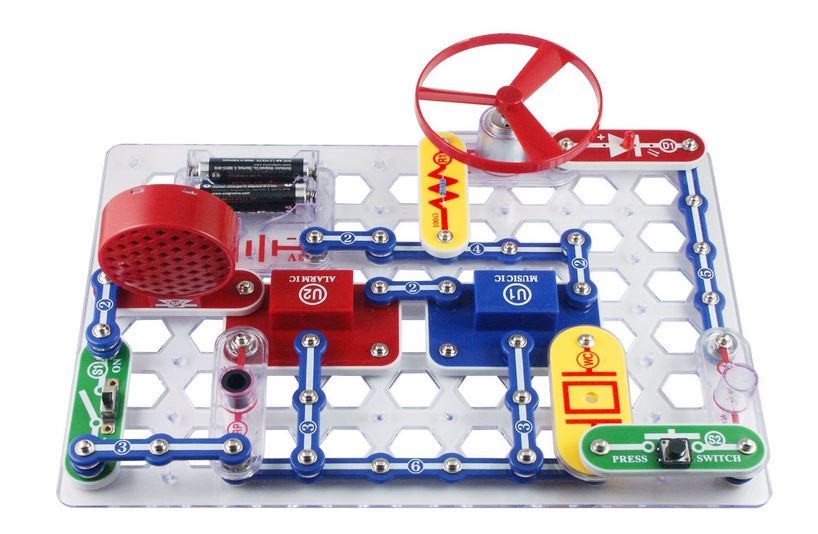
My son is getting very interested in doing science experiments with batteries, wiring and making simple circuits. He has grown up with one of those construction sets, (Snap Circuits Amazon $21.90) where you snap the colored plastic bars into the series and add a battery and light bulb, sound generator or fan and make it all run. He is now wanting to explore more on his own.


I decided to look for apps for the iPad that let you drag and build circuits - I came across "Exploriments" which is a set of app science experiments on different topics, all very hands-on. The first one is free and explores weight and mass letting you try playing with weight differences on different planets,
Check out their Blog HERE

Here is a demo video on their unit on electrical circuits:


Here is a link to their app page that explains insights in the different units and shows demo videos for some of them.
The Unit I downloaded had an overall actions button that showed what the activity chosen can do and how to manipulate it. It was very easy to use. The insight button gave you a set of scrolling index card style insights 1-10 of things learned in each activity. The free mass/weight app had 3 built-in activities each on a concept.
For students that need hands-on ways to learn material, I would highly recommend checking these out. They range from free to 3.99 for individual app topics such as units on motion, weight and mass, electricity, optics, Newton's Law, compunds, Pendulums, Vectors, etc.
Teachers may be interested to know they have these available for use on a computer for the Promethean and SMART board.
Have fun Exploring!
Lon


Bookmark this on Delicious

Tuesday, February 19, 2013

AT Tools for Everyone's Toolbox, Part One:


In December I wrote a post, "Self -Accomodation Should be a Standard of Daily Life". In it we looked at the ways we accommodate the tasks we do day to day. We looked at how students need to have tools that are accessible to them and help them accommodate their learning. It is also important that all the tools be available to all learners with equal access.

Assistive Technology
The definition of Assistive Technology according to IDEA is:

“Any item, piece of equipment or product system, whether acquired commercially off the shelf, modified, or customized, that is used to increase, maintain, or improve the functional capabilities of children with disabilities.”

Assistive Technology has lived behind the special education boundary lines for a long time, but trends are pushing us forward and prodding us with the idea that assistive technology and universal design principles aren’t just for our special needs population, but should be integrated into learning for everyone. Students spend 7 -8 hours a day in the process of learning new things and experiencing challenges to succeed. They certainly deserve as much of a level-playing field as we can give them.Think about the words “increase, maintain or improve”. There are greater demands on educators for accountability to demonstrate that all our students are increasing and improving test scores and mastery of common core goals. We want to see our student’s knowledge and abilities increase and improve, but students with degenerative disabilities may struggle just to maintain, so we need to make sure we include them in this too. If I feel that I have to work harder sometimes to maintain, just think about how our students feel! Put yourself in your student’s shoes and you will realize accommodations need to be there for everyone.
What are the tools to help them on this “Road to Success”?
There are low-tech, mid-tech and high-tech tools for student accommodation. Below is an overview of the low tech tools that should be available. In future posts we will cover mid and high tech tools as well as links to specific free software and video tutorials.

Low Tech Tools:
Low-tech tools are things like special pens and pencils, highlighters, scissors with special grips, pencil grips, embossed line paper, slant boards, transparent color overlays to lay over text for reading, text-framing strips, highlighter tape, colored keyboard labels, number lines and counting boards, enlarged worksheets, page magnifiers, fidget toys to help with concentration and sensory issues, highlighters, tabs, color-coded folders and visual schedules for organization. Having these things available in an organizer for class access would be one low-cost way to expand tools for accommodations.
Guide your students in understanding how they learn and show them how and when to use tools that make it easier for them. You might sit down with your students in a conference format and work with them to fill out a “Personal Learning Styles and Tools Profile” that helps them think through and check the things they know would help them succeed. Adjust and adapt it throughout the term or school year and help them define and focus-in on the tools that work the best for them in different situations.
Taking the time to set up the foundations for accommodation can reap huge benefits for all your students and establish life-long patterns for success.

Resources:
To check out an online comprehensive toolbox go to: http://udltechtoolkit.wikispaces.com/
A great place to see many low tech tools in one spot is http://www.onionmountaintech.com View their LoTTIE (Low Tech Tools for Inclusive Education) kits.

All the best to you!
Lon

Bookmark this on Delicious

Thursday, January 31, 2013

Aurasma App: Augment Reality With a "Virtual" Routine Schedule


Wouldn't it be great if you could aim an iPad or iTouch camera at a symbol or picture on a daily visual schedule and get an instant video of what the steps are for that routine? Well you can for free with the Aurasma App.
In 4 simple steps you can link a video in your camera roll or photo album as an overlay and sync it to an item or a picture symbol in the classroom. Once that is done, a student can hold the iPad or iTouch with the Aurasma App on, and the camera automatically sees the image and starts the video.

Easy Steps:
Get the Symbol
I went to Google images and picked a picture of a fiddler for music and copied and pasted it into a Word document, enlarged and printed it off for my wall "symbol". (You could use your Visual schedule images, etc.)

Choose the video
I looked on my camera roll and found the video clip I wanted to use of the teacher in music, then opened the Aurasma app and pressed the plus sign to add a new aura/overlay. It asked what overlay I wanted and I selected the "Device" option, then pressed a plus sign and browsed/to  my video to attach it.

Add an "Aura"
The app asked if I wanted to add an Aura. I laid the picture of the fiddler down on the table and held the iPad over the picture and looked to see that the red/yellow/green slider went to green, then clicked on the camera icon and took the picture.

Name your new Aura
I named it the title I wanted for my class activity/routine and it saved and linked the two together.
Done!

Use Your New symbol linked video with your schedule
Now when I hover over the image with the app on it gives me purple swirls and starts the video hovering over the symbol in real time.

Here is a video of  Aurasma being used in education:


Applications:
I am going to work with an intensive learning center I consult with to take some short videos of important routines and link them to some schedule symbols and see if we can't make this a fun and motivating way to learn how to come in quietly, sit at circle, listen to a book, have music time, wash hands for snack, etc. How about a video of a storybook that when the cover is scanned it reads and asks questions? How about a flash card or manipulative activity with a short clip on how to sort or play? I would love to use videos with card symbols that model cooperative play, sharing, taking turns and more.
The idea are endless.

Go have some fun!
All the best,
Lon

Bookmark this on Delicious

Monday, January 28, 2013

Wednesday, January 9, 2013

Build Your Own Virtual Driving Course for Training Joystick Driving Skills


I couldn't find a free online driving game that would allow us to use a mouse or joystick mouse emulator to steer a car around streets and help a student train to drive a power chair. We wanted him to be able to practice on a computer before the real joystick was attached to his chair.
I finally decided to make my own driving course and I used Power Point to create different virtual mazes/courses that he can maneuver through. I found mounds of dirt, motocross tracks, barns, grocery stores, post offices, gas stations, student desks, start and finish signs, etc. on Google images and then created my slides of a dirt track, 4 city blocks and an intersection, a classroom with rows of desks, and more.
The key to this was using the Sonar Cursor Ring Program so we could set the cursor to be a big red ring to use to "trace" the track with the joystick around the course. You can use larger and colored cursor settings on your computer to facilitate this as well as downloading and importing cursors. I think it would be fun to add my own custom cursor, an image of a wheelchair with the head of the student photo-shopped on to make it more fun. Be creative!
Unfortunately the organization that supported and offered the Sonar Cursor Ring has closed their website but you can still get the free program as a part of Access Apps/EduApps and My Study Bar Downloads.
If you want to design your own custom cursor, making it be a wheelchair, dune buggy, etc. you can copy an image and edit it and add it to your mouse setting pointers/cursors list to choose. Here is a Youtube video for you to "geek out" on how to create a custom cursor for your computer:


We used the Penny Giles Roller II Joystick USB Mouse Emulator for the computer with interchangeable handle and soft ball tops. You can get it for $345 from Boundless Assistive Technology online.


We don't have one of these in our equipment center but fortunately we were able to use the Oregon Technology Access Program (OTAP) out of Roseburg, Oregon to borrow one to trial. This is a free service to Oregonians and you pay return shipping. Whether you are an Oregon school district or a family/home you should check them out.

Here are some screen shots to give you and idea what you can create.

Basic Simple Cross Hair Practice Course (Tracing up/down, left/right):

Object to Object Navigation Course:
Classroom Desk Obstacle Course:
Dirt Track Course:

Dirt Track 2 (Made with Paint Program)

City Intersection Course:


Have fun and safe driving!
All the best to you...
Lon

 Bookmark this on Delicious

Monday, January 7, 2013

Operating Switch Adapted Toys with the iPad


I have been asked about ways to use the iPad for switch operation of something other than apps on the screen or typing/communicating. There are children using the iPad, but not for creative play due to their limitations.We have one bluetooth switch to run a speech app that step scans, but nothing to operate toys with the iPad.
I found this article on the Switchamajig that allows you to use the iPad as a controller to run RC cars and toys. It lets you use multiple switches so you can steer a toy, access multiple functions of a toy, etc. The only thing is that you will need a switch port for each function to connect to the controller. The developer designed the controller for his 2 year-old to be able to play in a more interesting and creative way. He also adapted the toys to work with it. He offers quite a few toys  that will operate with his controller if you don't know how to or don't have the time to tear open a toy and do the adapting yourself! There are some videos on Youtube that show how to adapt the toys put out by Switchamajig. There is an intro Youtube video below.
Here is the iTunes link to the free app.
Check out the site and the blog post from Adapting Creatively. There is also a $50 discount available through this blog.
All the best to you!
Lon


 Bookmark this on Delicious

Tuesday, December 11, 2012

Self-Accommodation Should be a Standard of Daily Life


Think of the last time you accommodated something you needed to do. Did you find a tool to help you screw that screw in better, stand on a stool to reach higher, maybe grab your glasses because the print was too small on the side of the box?
We all self-accommodate our limits in skill, whether it is in hearing, vision, height or weight…okay, I will stop there! I think you get the picture. It is interesting to think about how our students accommodate their learning at school. In many ways they are dependent upon our ability to match the right accommodation with the disability they have because they might not be able to accurately tell us or show us or put in the right words what they need or what they can/can’t do to their best ability. They just know “something is too hard” or “it just doesn’t feel good when I try”. We adjust and adapt our way of doing a thing for ourselves but often our students don’t know they even have a choice let alone what the choices are.
Self-accommodation is best used when all the tools and strategies are available to all students. This is a principal of Universal Design for Learning that allows all students to learn in the style that works best for them and not feel different because they choose a tool out of the toolbox to help them spell, write, read or do math. Assistive technology should be all about accommodations that make learning feel good and makes it accessible and possible to accomplish and be successful.
So let me ask the question again, but re-phrase it a little this time. Think of the last time you helped one of your students self-accommodate something they needed to do. Did you offer them a set of headphones and a computer in the back of the room with a talking word processor to help proof-read and edit their writing? Did you offer them a talking dictionary? How about an electronic version of a worksheet or a literature selection that they could listen to and follow along with? There are accommodations that come in plastic colored opaque reading strips, magnifiers, jump drives with loaded study bar tools for organization and note-taking. There are low, mid and high tech tools, many of them free or low cost. There are incredible tools on iTouches and iPads that are making self-accommodation for reading and writing a fun and liberating thing.
Where to start? We will be presenting some of these tools in posts ahead. Begin to use some of these tools for yourself and they will become second-nature to use with your students. Also, students are so innately capable to grab onto technology that if you begin to offer some of these tools they might end up showing you a thing or two! Whatever we do, we need to think of how to help our students access learning in multiple ways with multiple tools and we all come out winners.

All the best,
Lon

Bookmark this on Delicious
Monday, December 10, 2012

Text to Speech Up a Notch with Voice Dream Reader App


I was checking out a list of apps that support Dyslexia  I linked to, Friday November 30, when I came across Voice Dream Reader. The thing that caught my eye was that it supports Bookshare files. I downloaded it and tested it out.
The app ($9.99) allows you to bring in text from Dropbox, and reads many formats including Epub, Word, Plain Text and pdf. There is also a web browser that lets you navigate to a web page, then do a smart save that edits out advertising and other text from the page and gives you the article text ready to go on your shelf. The web page I tried had lost of ads and blocks of unrelated text and it effectively cleaned up the page and gave me the article ready to read.
The voice that comes with it is a female voice that is very pleasant. There are lots of other voices that can be downloaded for .99 each. I especially like "Tyler" if you want a Hugh Jackman voice reading to you - very natural. The text size and background is all able to be customized and it highlights words as it reads. By pinching the screen you can reduce the area of the screen so it is only a few lines of text wide to take away a lot of distracting text so you can focus on the text being read. There is an editor so that you can edit text within the app. The app also offers translation services to translate a document for a nominal fee.
The settings menu includes a Bookshare account that you can activate for .99. It provides for your login, and if you have an individual account, it will let you search and download titles. It does not support organizational accounts at this writing. Paying .99 cents is a "steal of a deal" for those with individual accounts compared to paying 19.99 for the Bookshare app Read2go. Having tried both , I like the streamline way organizations can use Read2go to support students with Bookshare accounts at school on iPads, but I believe the Voice Dream Reader should be a staple reader to access other content within your pdf's, epubs and other stored documents.
I liked the timer that comes with the app, allowing you to set it for a limited time as a sleep setting or when you go out of the app to do other things. Voice Dream Reader keeps reading when you exit out and go to other work.
Finally, I appreciated how quickly an email came when I emailed their support to ask some questions. They were very prompt and very supportive. I have added this app to our list of accessibility apps for students in the classroom. Check it out.
All the best,
Lon


Bookmark this on Delicious

Thursday, December 6, 2012

Reading Apps: Subtext App Will Read to You


I have been playing with different reading apps to look at accessing text for students. Our Instructional Technology team that writes iDevice in the Mountains, showed me Subtext this morning and I really like it. It has a quality voice and it is free. It has many supports for group readers in the classroom. It also hooks into Google Books to access public domain free classics and about any book you would want to buy AND reads it without worry of a text to speech voice feature inaccessible by the publisher as has been the case on the Kindle. If you are wanting a free reader with a nice voice that tracks and highlights the text, increases font size and imports in the books, web articles and documents, this is a great choice.
 iDevice in the Mountains did an awesome review with a tutorial, so rather than re-write what they have done, go to their post and check it out for yourself. They say:

"We're often visiting with teachers that need to have accommodations allowing a device to read text to students.  They ask, "Is it possible to have the iPad read something like aTween Tribune article"?
(Continue to full post)

I have several reading, text to speech apps I will be reviewing here over the next few posts so be sure to check back.
All the best,
Lon

 Bookmark this on Delicious

Friday, November 30, 2012

iPad Apps List for Dyslexia: University of Michigan


I had a request for some apps for the iPad that could help with phonics and early reading and writing for young children with Dyslexia. I found this list of apps for Dyslexia today and thought I would pass it along from the University of Michigan.
A nice set of Apps...did you know Bookshare has a FREE app for Android now: Go Read?
Have a great Weekend,
Lon

 Bookmark this on Delicious

Wednesday, November 28, 2012

New Technology Raises New Challenges in Accessibility : What Are They?

The iPad has LOTS of accessibility features for folks, but what about switch access and accessibility interfaces for scanning on the tablet and within apps? There seems to be one switch for one app developer and another switch for another app developer but they don't work together.  There's lots of work to do to create uniform standards for accessible add-on devices and apps.

This and other topics were batted around in "A Life of Learning Magic: An Interview with Byron Wilkes", as I interviewed the CEO of Learning Magic Inc. You can listen to the interview HERE.
The mobile app craze and the lack of a standard among companies for apps and switches that specialize in SPED and learning has made it difficult to see where the future is heading in access for the end users. Byron discussed the changes that need to take place in the new iPad, Android, Kindle world to make programming, tools and peripherals uniform for users with disabilities.
Have companies that sell Clicker 5, Classroom Suite and My Own Bookshelf toyed with developing them as apps? I asked Byron this question since his Learning Magic content played on these software titles. Listen to what Byron shares on this subject.
I would highly recommend sitting in on this 40 minute discussion.  I welcome your comments and discussion too!

Here is a developer, KomodoOpenlab/ TECLA that has made the main iPad and some applications accessible with scanning and a single switch. there are other videos and they have an interesting website. Maybe we can get them on the talk show to share their ideas too:


You can also listen to the program on the right side bar in the Blog Talk Radio Player.
All the best,
Lon

Bookmark this on Delicious

Tuesday, November 20, 2012

Free Goodies Available at Learning Magic: Closing Doors end of 2012

Learning Magic, a pioneer in interactive learning on the computer will be closing its doors the end of December 2012. The company, founded by Byron Wilkes, has been dedicated to developing materials and templates for students with special needs to access the fun of learning through motivating topics such as wildlife, nature and ecosystems around the world. Byron teamed up with experts in the SPED Learning and Speech Language Pathology field to develop materials that addressed key learning concepts in fun and motivating software.  Many of these activities featured hundreds of photographic images Byron took of fish in coral reefs, roaming under a rain forest canopy or trekking across Kenya with camera in-hand to capture the "magic" that led to learning in a special way. I thought of him as a Marty Stouffer, Marlin Perkins, Jacques Cousteau and Crocodile Hunter rolled into one for special needs kids. His packaged units, complete with vocabulary, writing starters and lesson plans were designed to play in software such as Intellitools Classroom Suite, Crick Clicker 5 and SoftTouch My Own Bookshelf.

A set of his photography available to use in your own lessons, PCS and Topic/Communication Boards:


I first met Byron when he came down and participated in an Eastern Oregon Summer Institute for teachers. He spent a couple of days with me helping in my classes and sharing his software and concepts for interactive and adapted learning that fostered writing and reading in high interest titles for students with learning or physical impairments. Byron donated his product library to our Assistive Technology Center for our teachers to trial for purchase. Through the years I have run into him at many national conferences and sessions and he has had a great impact on me.

Byron sent out an email sharing:

"We want to first thank the thousands of teachers/therapists/parents and others who have worked with us in the creation/testing and use of our proven products.  Our website (www.learningmagicinc.com) will go off line at the end of December, so we encourage you to go to our "Goodies" section and download as many of the free IntelliTools Classroom Suite, Clicker 5 and My Own Bookshelf activities as you would like.

Our commercial products will remain available throughout the end of the calendar year or until inventories run out.  If you would like product or pricing information please feel free to email us at info@learningmagicinc.com.

Thank you again for your support and encouragement throughout the years"

Thank you Byron for your investment in children and the thousands of students who have had more fun learning because of you and your efforts! I am looking forward to hearing about your next great adventure!

You can listen to Byron share about his life's work and his thoughts on the future of technology and special needs on Blog Talk Radio, Wednesday November 28th at 10 a.m. The archive will be available on the side-bar player afterwards as well.

All the best...
Lon


Bookmark this on Delicious

Monday, November 19, 2012

The Adapted Stylus: Which One Would You Choose?

The type of stylus used on an iPad or other tablet screen can be crucial for the success of a student trying to write, draw and select areas on a screen. Fine and gross motor issues need to be considered in the process of selecting a stylus for children with orthopedic impairments and there are an array of choices. OT's with Apps ran a nice list of them in a recent post I am linking here: iPad Adaptive Styluses for Individuals with Mobility Impairment. They shared:

A stylus with a long bendable extension:


A stylus with a handle grip:

A stylus adapted on a snorkel mouthpiece to use in the teeth:


...and many more! Links to the places to purchase these and other adapted styluses can be found in the linked post. Think about the access piece for your student The right stylus might open the door to greater success and productivity.
All the best,
Lon
 Bookmark this on Delicious

Wednesday, November 14, 2012

Proloquo2Go Resources for Version 2.0


This past summer, the new Proloquo2Go Version 2.0 was released. I have been excited about the new basic and core vocabulary feature. You can choose an option for a basic or core word vocabulary. You can also choose how many columns you want it to be which can correspond to the level of the user.
PR Web put out an explanation of it this way:

"Version 2.0 offers two completely new research-based vocabularies: Basic Communication for beginning communicators and Core Word for more advanced communicators using or developing their language skills. An analysis of commonly used sentences has shown that the new Core Word vocabulary reduces the number of steps to build a sentence by more than 30%, when compared to the previous version of Proloquo2Go."

I wanted to link some resources to read and watch that take you through the paces of the new version.

A popular Autism blog site that reviews apps, Autism Plugged In, has posted a review on the new version: Is Proloquo2Go Really Worth $189.99?

Here also, is a link from Spectronics Blog on the new 2.0 version.

Webinar and Video Tutorial Resources on Proloquo2go:

Autism Plugged In presented a Proloquo2go iPad Demo Workshop. The videos of the day workshop have been uploaded to You Tube and you can access the list of topics here.


Spectronics Blog has a webinar on the new features you can access here.

Here is a link to the full manual for Proloquo2go version 2.0

If you are looking to understand the changes and new features, check out these links!
All the best,
Lon

Bookmark this on Delicious

Wednesday, November 7, 2012

Toontastic App for Writing, Communication, Emotions and ...FUN!


I saw the Toontastic App for the iPad yesterday. The SPED teacher showing it to me was very excited about it . This teacher has her students working on animated stories using this app. Here are the elements that made it popular with her and her students:

1. The "Story board" goes through the different stages of a story, they call a "Story Arc",  from setup, conflict, challenge, climax and resolution. Kids can create a scene that represents each element of a story. They can also reduce or expand the number of scenes representing these elements.

2. Students can select a setting background or draw their own background and save/catalog it.

3. They can pick "toys" which are the characters in the story to animate. They remind me of movable Play-mobile figures.There are several free ones and more can be purchased in themes of castle, sports, town, space, monsters, Halloween, pirates, etc. They can also draw their own characters, color them and catalog them in the character library.

3. Students start "rolling the camera" and move the characters, re-pose movable parts and read their script to create the scene.


4. Mood matching to Music: This was a HUGE plus to the teacher I visited with because she has students who cannot read emotion real well. The music step in the app has different emotions to select and then slide up or down for different music intensity/style that matches, i.e. friendly moves to loving to passionate. Each level has different classical music matching it and a cartoon icon with a cartoon face showing that emotion.

5. Once the scene is done they repeat the steps for the next element in their "Story Arc". It then packages it all together and asks them to name their movie and categorize it. They can either save locally on the iPad or post to an online account area for view by others.

The World:
Toontastic has a share feature on "Toontube"  that shows the globe and places all over where movies have been posted. I selected Madagascar and got an adventure movie  drawn and created by a student there. He did speak in English so you could understand it. Very cool. No one can contact the creators and no personal information is posted - just the nickname, name of movie and number of "likes". You can Share the video too so there is a social network aspect to it on a limited basis.

The teacher that shared this app with me says that her students are learning about cultures so they have been viewing videos created by kids from places they talk about. She is also excited to see students who are quiet and reserved verbally, using the app to talk and record their stories.
Initial download is free which includes the animator/player with limited scenes and characters to play with. More can be purchased in sets or the complete package can be added for $9.99. 
Check it out!

All the best,
Lon


Bookmark this on Delicious
Tuesday, November 6, 2012

Autism Funding Resources for iPads


I received a letter today from some parents discouraged because their insurance denied an iPad with an AAC app for their son. We did trials with him using it last spring and over the summer they collected the pieces needed to submit a request. I have found it dis-heartening that insurance companies will cover an $8000 AAC device that is durable medical equipment but won't fund an iPad with a communication app that will provide the same support. I know this doesn't hold true in all cases and I know too that every child is different and the $8000 devices can be what is needed, but when it isn't and insurance won't cover it, where can parents look?
In response to this dilemma, a friend, and parent of a special needs boy, sent me a link, "Funding for  iPads" a list of resources developed by The Autism Society contact center. They have had many parents contact them with questions on where to look for funding help to purchase an iPad.

Other Resources and Articles:
If you are interested in more information about iPad funding resources and the issues surrounding it, documentation needed, etc. go to this link "How to Get an iPad Funded" by TACA (Talk About Curing Autism)
Also, "Five Steps to Getting an iPad Covered by Insurance" contains some great tips and sample documents you can use for greater success in filing a claim with your medical insurance for an iPad.

I hope you can find a source to fund an iPad for your child!

All the best,
Lon

 Bookmark this on Delicious